

Ben's VPN on OpenWrt routers
One SSH command puts the app on an OpenWrt router. After that, the whole home network uses Ben's VPN. No device on it needs its own app.
Installation and sign-in
Requirements: a computer in the router’s home network, and a Ben's VPN account that has an e-mail and a paid subscription.
-
Check the router
Firmware: official OpenWrt 24.10 or 25.12 with fw4. Version 23.05 and older releases are not supported. RAM: 256 MB or more, shown in LuCI under Status → Overview as at least 200 MiB. The router must have internet access.
The root account must have a password. You set it in LuCI (http://192.168.1.1/, System → Administration) or with
passwdin an SSH session.Packages that block the installer: remove them before step 3
- pbr
- podkop
- passwall
- passwall2
- homeproxy
- openclash
- nikki
- mihomo
- sing-box as a standalone service
A package from another VPN service blocks it too. For a processor with no package available, the installer reports this and leaves the router unchanged. With an OpenVPN or PPTP client in its firmware, such a router connects without the app: the Other routers tab in your account describes how.
-
Open an SSH session
The first connection asks to trust the host: answer
yes. Then enter the root password.What you will see
A
root@OpenWrt:~#prompt.
-
Run the installer
Paste this command into the SSH session. The installer detects the OpenWrt release and the processor type. Its messages are in English.
Install command · OpenWrt 24.10 and 25.12
wget -qO /tmp/bensvpn-install.sh https:// storage.googleapis.com/ bensvpn/ router/ bensvpn/ openwrt/ install.sh || wget -qO /tmp/ bensvpn-install.sh https:// xxvv.loan/ router/ bensvpn/ openwrt/ install.sh && sh /tmp/ bensvpn-install.sh What you will see
A check of the router, then a confirmation prompt. Answer
yand press Enter. With any other answer the installer stops, and the router stays as it was.By default, the whole home network goes through Ben's VPN. Step 7 explains how to limit it to chosen devices. The Router section of your account has this command too, under OpenWrt.
-
Wait for the last line
First the installer adds the system packages it needs, taken from the OpenWrt repository. Then it downloads the app, verifies the checksum and starts the service. Leave the SSH window open until then.
“No package from …” is not an error by itself. It means the installer is moving on to the next address. “Critical error” follows only when no address is left: the questions below list the causes.
What you will see
Toward the end of the output, a line that starts with “Done” and holds the address of the router page.
-
Open the router page
From a device at home, go to bensvpn.home:8790. When the name does not resolve, http://192.168.1.1:8790/ works.
The login field already says root. The password is the root password from LuCI and SSH.
What you will see
The page says “Not signed in” and offers a “Sign in with code” button. No account is linked to the router yet.
-
Link the router with an 8-digit code
On the router page, choose “Sign in with code”. Next, in your account, open the Router section, choose OpenWrt and click “Get code”. Type the 8 digits into the “One-time code” field on the router page. Each code lasts 3 minutes.
What you will see
The code is sent automatically after the last digit. Status then shows “Connected”.
Instead of “Get code”, a red note may appear. It means your account has no e-mail, and the router does not accept accounts without one. Sign in to the site with an e-mail first. The mirror buttons above the code field are for one case only: the router cannot reach the service.
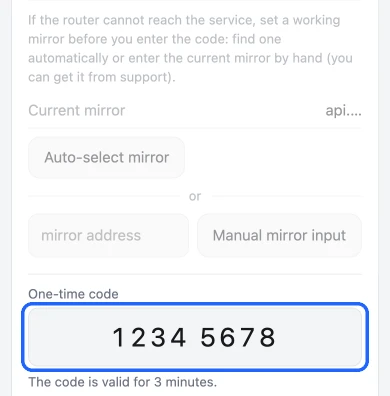
Sample digits, not a real code. -
Choose devices
Right after installation, every device on the home network uses Ben's VPN, new ones included. Untick a device on the Devices tab to take it off Ben's VPN. Other devices keep their setting.
The opposite mode is “Only selected devices use VPN”. Turn it on there and tick the devices for Ben's VPN. All others, and any new device, connect directly.
What you will see
A device you tick moves to Ben's VPN in under a minute.
Firmware updates
Flashing new firmware erases installed packages, and the app is one of them. Prepare immediately before the flash: “Prepare for the upgrade” on the More tab, or bensvpn prepare-upgrade in SSH. The router saves the app version and the sign-in. Until the app returns on the new firmware, devices connect directly. Flash with the settings kept. A settings backup taken after this step includes your account’s access keys. Do not share or publish that backup.
When the new firmware boots, the router installs the app again on its own and keeps the same account. This also works for a move from 24.10 to 25.12. If the app does not come back, for example when the preparation was skipped, run the step 3 command again and repeat step 6 with a new code.
Removing the app
On the router page, open More and choose “Remove…”. The window asks for the admin name and password, with root already in the name field. You have 2 minutes to confirm with “Remove”. After that the window has to be opened again.
Removal returns the devices to a direct connection, clears the app settings and deletes the package.
Without the router page: run bensvpn uninstall in SSH, then opkg remove bensvpn (apk del bensvpn on OpenWrt 25.12).
How the app behaves
- Service stop
/etc/init.d/bensvpn stopputs the network on a direct connection immediately- Reconnects
- devices assigned to Ben's VPN stay without internet until the app is connected again. They do not switch to a direct connection
- Updates
- automatic by default, at night from 03:00 to 05:00 router time. More → Update turns them off or installs one now, with Check for updates and Install now. During an update, devices on Ben's VPN are offline for about a minute
- Exclusions
- a preset for Russia or a list of your own sites, set on the Exclusions tab
OpenWrt questions
Other questions go to Support 24/7: Telegram @bensvpn and [email protected].
No SSH connection to the router
First check the network and the address: the computer has to be in this router’s network. Windows without an ssh command needs OpenSSH Client (Settings → Apps → Optional features) or PuTTY. After a reflash, SSH may report REMOTE HOST IDENTIFICATION HAS CHANGED. Clear the old key with ssh-keygen -R 192.168.1.1 and connect again.
The password is rejected
Enter the root password. LuCI uses the same one. Step 1 explains how to set it.
Errors about wget or && in the terminal
Your computer ran the command, not the router. Repeat step 2 and paste the command after the root@OpenWrt:~# prompt.
The installer stops with an error
The cause is printed after “Critical error”. Up to the [y/N] prompt the installer only reads the router and changes nothing. Typical causes: the root account has no password; a package from step 1 is still installed; the router is offline; RAM is below 200 MiB; the firmware predates 24.10; internal memory has too little free space.
The router page is unreachable
Use a device in the main home network. The guest network has no access to the page. Private DNS on Android and secure DNS in a browser break the name bensvpn.home: use http://192.168.1.1:8790/ or your router’s address with port 8790. Also make sure the installer printed the “Done” line.
The code is not accepted or has run out
Request the code only when the Account tab of the router page is already open. It works once, for 3 minutes. If the page reports a code from an account without an e-mail, sign in to the site with an e-mail and request a new code.
A device reaches the internet without Ben's VPN
This is expected in four states: the router is not signed in, the subscription is unpaid, the app is paused, or its service is stopped. The connection state of the router is on the Status tab. Also check the device’s tick on the Devices tab.
Subscription prices

The 3-day trial costs $0.50, then $5 per month.
Same features on every plan. Bonus months come with purchases on this site.
Refunds follow our refund policy.
Guides for other routers
- VPN for routers
- Our app, or OpenVPN and PPTP
- VPN on Keenetic and Netcraze routers
- App on the router
- VPN on a MikroTik router
- Container on RouterOS 7
- VPN on a TP-Link router
- Archer’s built-in client and device list
- VPN on a Xiaomi router
- PPTP on stock firmware, or OpenWrt
- VPN on an ASUS router
- OpenVPN profile, new or old firmware
- VPN on a Tenda router
- PPTP client, login from the account page
- VPN on a D-Link router
- Firmware client or a second router
- VPN on a Zyxel router
- Our app on Keenetic or PPTP