

VPN for PC: installing the Windows and Mac apps
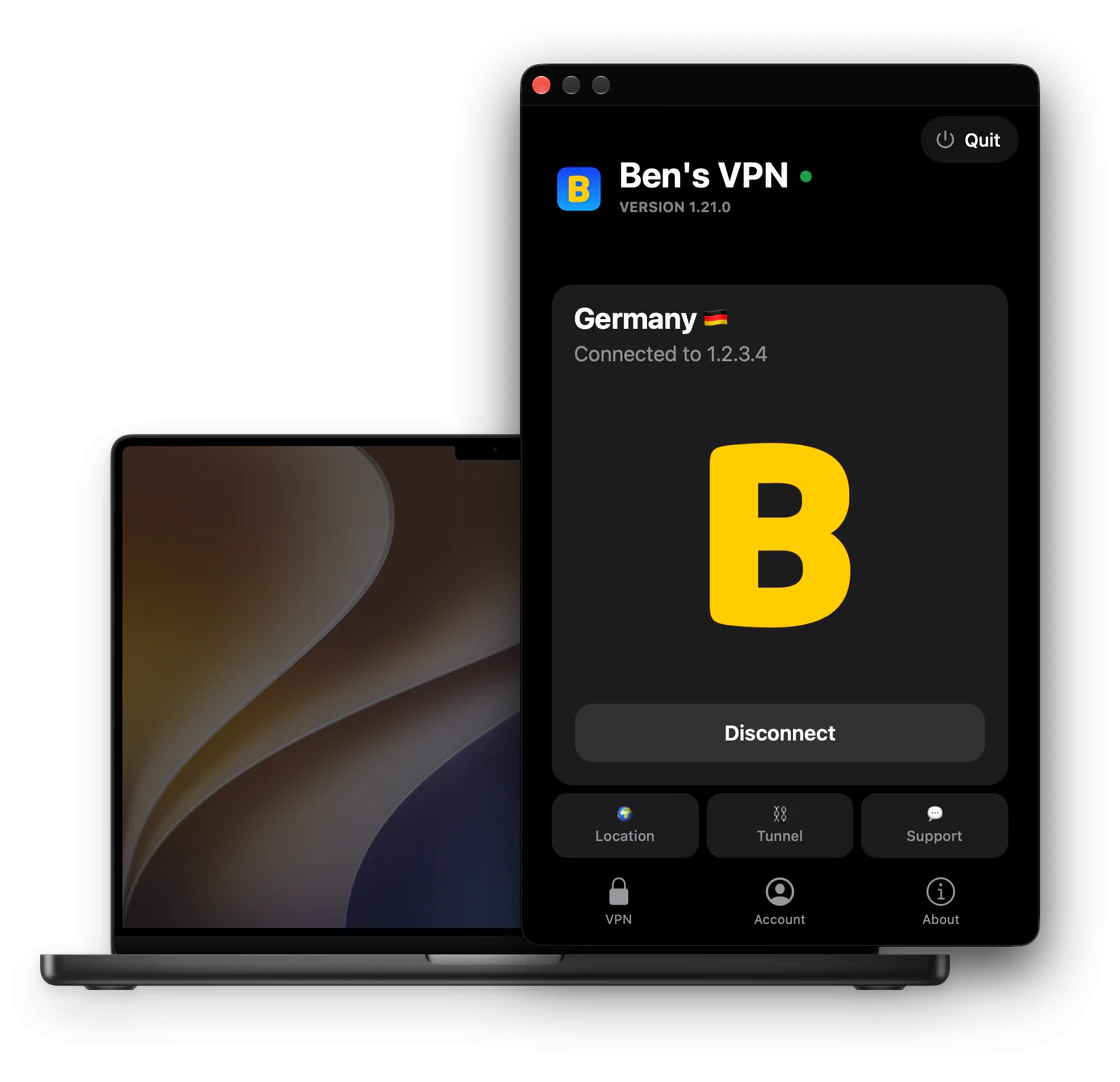
Ben's VPN comes as an EXE file for Windows and a DMG file for Mac. Both apps have the same window and the same buttons. One subscription covers your PC, your Mac and your phone. Sign in to the same account on each of them.

Windows: one EXE file and a tray icon
The Windows app comes as one EXE file for Windows 7 SP1 to Windows 11. The installer adds a network adapter for the app. If Windows asks for administrator rights at this step, allow it.
Closing the window does not disconnect the VPN. The app keeps running as an icon in the tray. Its right-click menu has Open to show the window and Quit to exit the app.
Other systems: all downloads.
Mac: a DMG file and 2 macOS approvals
The Mac app is a DMG file and needs macOS 12 Monterey and newer.
macOS asks for 2 approvals before the first connection. First, allow the app’s network extension in System Settings (System Preferences on macOS 12). Second, choose Allow when macOS asks to add a VPN configuration. The app may then ask for a restart to finish installing its VPN component. Restart the Mac and click Connect again.
The app icon stays in the menu bar after you close the window. Click the icon to open the window again. The Quit button at the top right of the window exits the app.
Other systems: all downloads · Yandex Cloud mirror
First launch on Windows or Mac: 3 steps
-
Open the app
The app opens the main screen in a guest account created for this computer. You do not need to register first.
-
Click Connect
A guest account starts with no subscription. The button therefore shows Buy Ben's VPN with our plans. Choose a plan, click Connect VPN and pay.
-
Sign in with an existing subscription
The same window has Already have a subscription? → Sign in to account. Use the account e-mail or a one-time code from a device that is already signed in.
Add a second computer with an 8-digit code
The subscription is stored in your account, not on one computer. A second computer gets access after it signs in to that account. A guest account is linked to the device that created it. If your first computer still uses one, link an e-mail to it first: Account → Link e-mail.
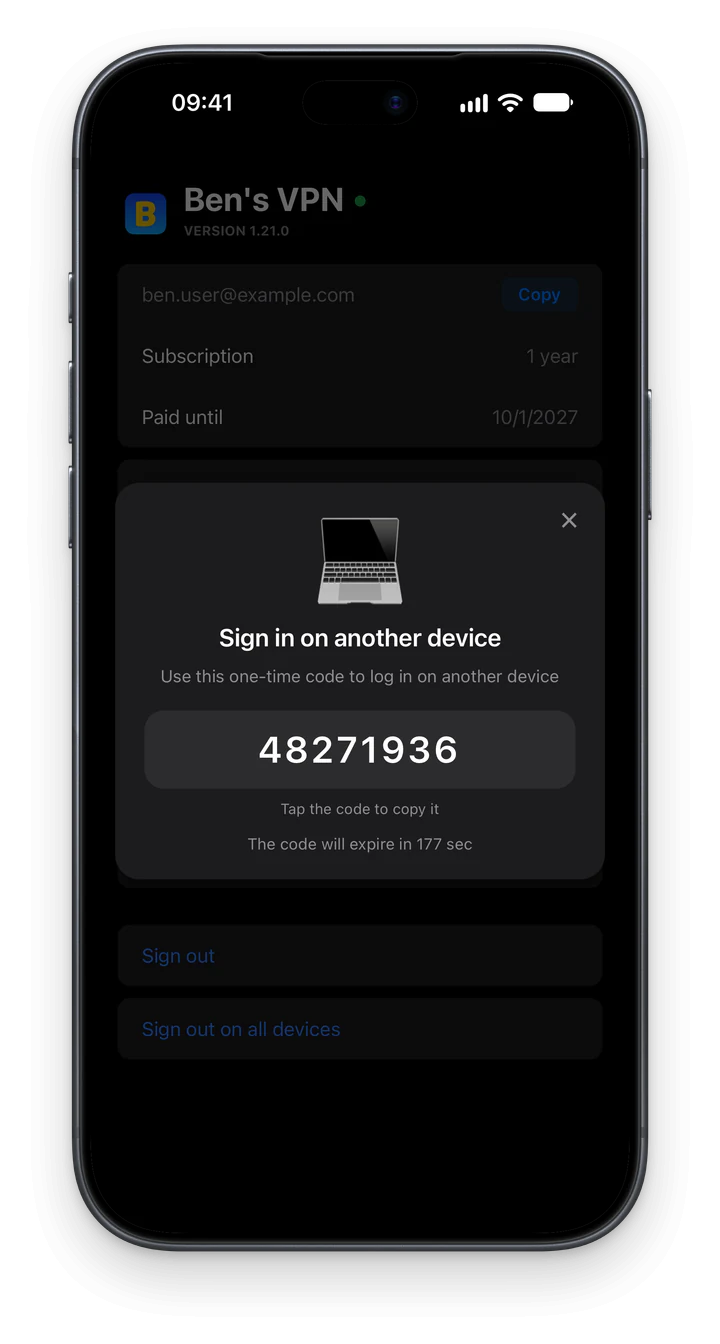
On the second computer, open the sign-in screen as in step 3 and choose Sign in with code. Any signed-in device shows this code under Account → Sign in on another device. The code has 8 digits and expires after 3 minutes. Sign in with Email also works and sends a 6-digit code to the linked address.
Sign out on an old laptop before it gets a new owner: Account → Sign out. If you no longer have the laptop, use Sign out on all devices on any other device. This signs out every device, the current one included. Sign in again wherever you still need the VPN.
Pages for each system and Windows release
The files above are enough to install the app. These pages cover what is specific to each system.
-
VPN for Windows
One installer for all Windows releases, and the problem cards the app shows on a PC.
-
VPN for Windows 11
Installation, sign-in and the tray icon on Windows 11.
-
VPN for Windows 10
PCs with another VPN installed, and PCs upgraded from Windows 7 or 8.1.
-
VPN for Windows 8 and 8.1
Travel with a Windows 8 laptop, failed updates and the move to Windows 10 or 11.
-
VPN for Windows 7
How to check for SP1, one PC with several Windows users, and app updates.
-
VPN for Mac
Site and App Store versions for macOS 12 Monterey and newer, and how they differ.
-
VPN for Linux
Choose between the .deb and the AppImage (Ubuntu 22.04+, Debian 12+).
Plans with no device limit
A plan is not tied to Windows or macOS. It covers every computer signed in to your account.

Bonus months come with purchases on this site. Refunds follow our refund policy. Send the request within 14 days of payment.
PC and Mac questions
Support 24/7: the chat on this site, Telegram @bensvpn and [email protected].
I am reading this page on my phone. Where do I get the computer version?
The button at the top offers the app for the device you are browsing on. On a phone, that is the phone app. The Windows and Mac files are in their own sections above. Open this page on the computer and download the file there.
Can my PC and my Mac stay connected at the same time?
The account has no device limit. Both computers can stay connected at the same time. Sign in to the same account on each one and click Connect on both.
Does the app have a dark theme?
Both the Windows and the Mac app have a dark theme. Open Account → Settings → Theme and choose Dark.
Is there a Linux version?
The Linux app comes in 2 formats, the .deb and the AppImage. The VPN for Linux page covers installing each of them.

Start for 3 days, then decide
The trial costs $0.50 and opens all 187 countries and every app.


